Living Documentation in Git - Why Your SharePoint Word Docs Are Dead
Move architecture diagrams and technical docs from SharePoint Word files into git. Version with code, review in PRs, never let docs go stale again.

You open SharePoint. Navigate to the project folder. Find “Solution Design v3 FINAL (2).docx” from 8 months ago. Half the integrations described don’t exist anymore. Three new ones aren’t documented. The ERD shows tables that were renamed in sprint 4.

Nobody updated it because nobody opens SharePoint to update a Word doc after a deployment. The doc was accurate the day it was written. It started dying the day after.
This is how most Dynamics 365 and Power Platform projects handle documentation. And it’s why most projects have no useful documentation at all.
Why Does Living Documentation in Git Beat SharePoint Word Docs?
Living documentation in git stays accurate because it versions alongside your code. SharePoint Word docs decay the moment they are saved, because they sit in a separate system that developers never touch during their normal workflow. Git-based docs get updated in the same pull request as the code change, reviewed by the same team, and tracked with the same history.
The Problem Is the Medium, Not the People
Your team isn’t lazy. The documentation process is broken.
Word docs in SharePoint have three fatal flaws:
- They’re disconnected from the code. The solution ships from a git repo. The docs live in SharePoint. Nobody remembers to update both.
- They don’t diff. When someone edits a Word doc, you can’t see what changed. Git shows you every line.
- They’re invisible. Developers live in VS Code and git. They never open SharePoint unless someone sends them a link.
The Fix: Docs Live Next to Code
Put your documentation in the same git repo as your solution. Markdown files. Draw.io diagrams generated with Claude. Committed alongside the code.
your-project/
  /docs
    architecture.md
    erd.drawio
    integration-map.drawio
    data-migration.md
  /pcf
    ... your PCF source
  /solution
    ... your Dataverse solution
When a developer changes the schema, the ERD is right there in /docs. When someone adds an integration, the architecture diagram is in the same pull request. When a new team member joins, they clone the repo and have everything.
What Goes in /docs
Not everything. Just the stuff that matters and changes with the code:
| Document | Format | Why It Belongs in Git |
|---|---|---|
| Architecture overview | Markdown | Changes when integrations change |
| Entity Relationship Diagram | Draw.io XML | Changes when schema changes |
| Integration map | Draw.io XML | Changes when APIs change |
| Data flow diagrams | Draw.io XML | Changes when migration logic changes |
| Configuration reference | Markdown | Changes when config options change |
| Deployment runbook | Markdown | Changes when environments change |
What does NOT belong in git: meeting notes, project plans, status reports, contracts. Those belong in SharePoint or your PM tool. Git is for technical documentation that describes the system.
What a /docs Folder Looks Like in Practice
A typical Power Platform / D365 project repo following this pattern has a /docs folder with:
architecture.md- ADRs (Architecture Decision Records) for every non-trivial choice- ERD diagrams generated from Dataverse schema exports
- Integration maps showing system boundaries and data flows
- Configuration reference for JSON web resources
The discipline is straightforward: when an entity is added, the ERD gets updated in the same commit. When an integration is added, the architecture doc gets a new ADR. The docs are never more than one commit behind the code.
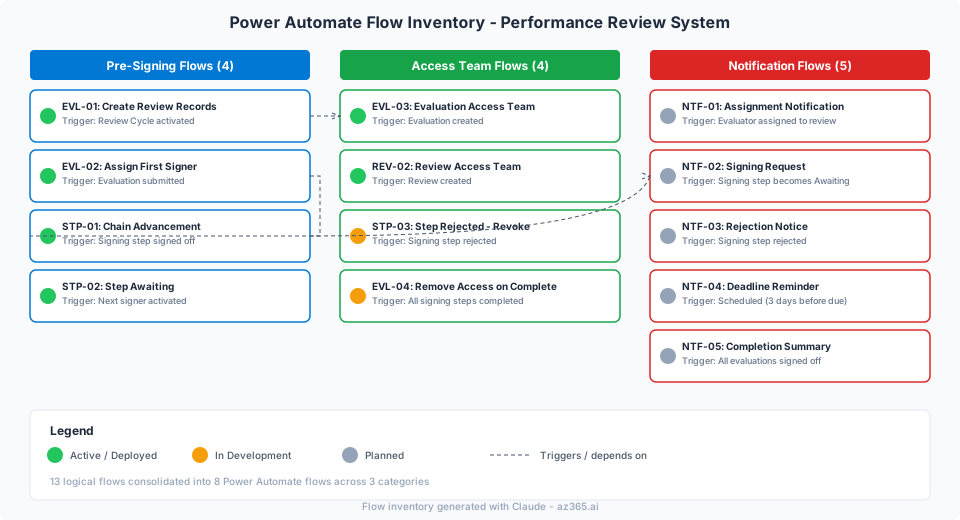
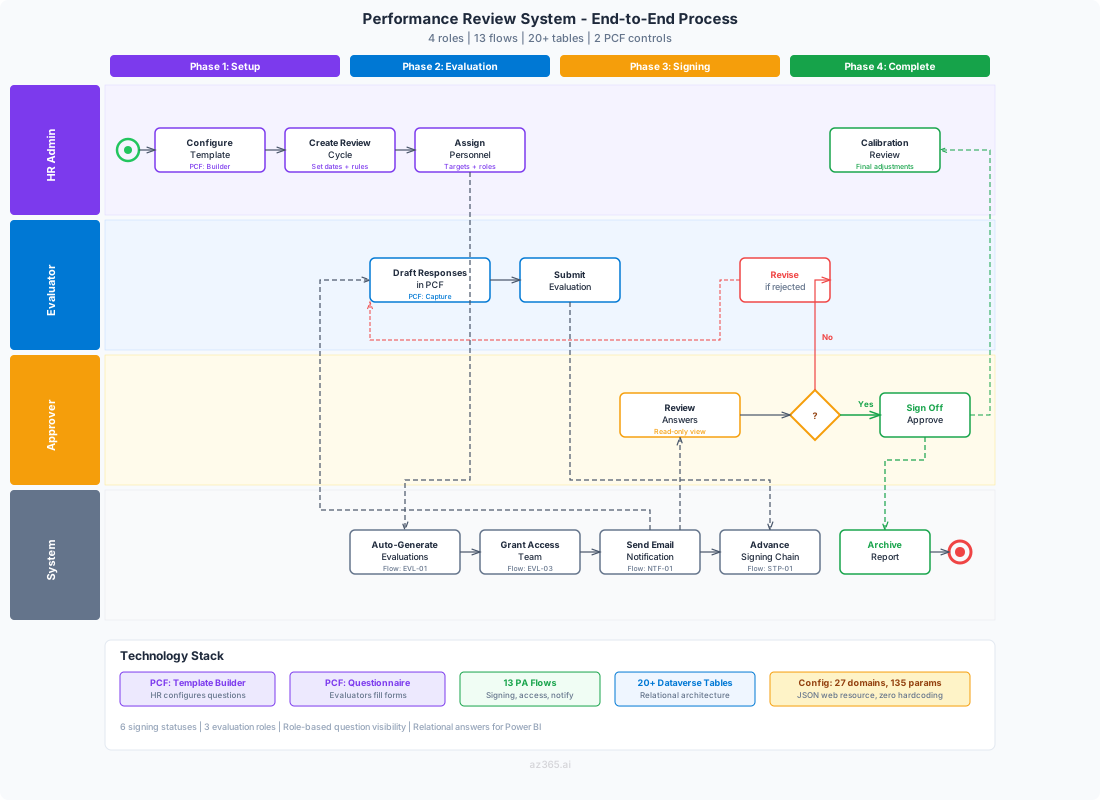
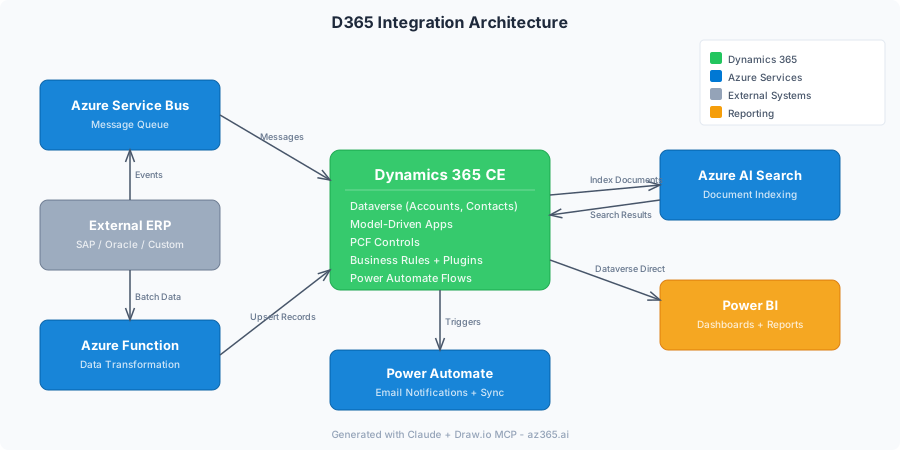
The figures below are illustrative diagrams generated from the Draw.io + Claude pipeline. They show the kinds of artifacts that belong in /docs for a typical Power Platform engagement, not measurements from a specific client engagement. Names, role labels, and counts are illustrative.
An end-to-end process diagram in the same /docs folder might capture all roles, flows, and components in one visual:
And the integration architecture showing how systems connect:
This approach pairs naturally with a governance repo where your standards, review checklists, and inventories also live as code.
How to Start
You don’t need to migrate everything at once. Pick one active project and do this:
- 1
Create a /docs folder in your repo
If you don't have one, add it. One folder, committed to git.
- 2
Move your ERD there
Export your current ERD (even if it's a screenshot) as a .drawio file or .md with a Mermaid diagram. Commit it.
- 3
Add architecture.md
Write three sentences: what the system does, what it integrates with, and what the deployment looks like. That's your starting point.
- 4
Make it a habit
Every PR that changes schema or integrations includes a docs update. Review it like you review code.
Want more architecture and documentation patterns for Power Platform? Follow Alex on LinkedIn for weekly deep dives on building systems that document themselves.
The Comparison
| SharePoint Word Docs | Docs in Git | |
|---|---|---|
| Updated when code changes | Almost never | Same commit |
| Version history | SharePoint versions (hard to compare) | Git diff (line by line) |
| Discoverable by developers | Requires a link from someone | Right there when you clone |
| Reviewed in PRs | No | Yes |
| Works offline | SharePoint needs internet | Local clone |
| Searchable in IDE | No | grep / Ctrl+Shift+F |
What’s Next
This is the first post in a series on modern technical documentation for Power Platform and D365 projects. Next up: generating architecture diagrams with Draw.io and Claude - no Visio license required.
AZ365.ai - Azure and AI insights for architects building on Microsoft. Follow Alex on LinkedIn for architecture deep dives.
Stay in the loop
Get new posts delivered to your inbox. No spam, unsubscribe anytime.
Related articles
What AI Gets Wrong on Power Platform: Common Anti-Patterns and How to Correct Them
AI proposes the most common Power Automate patterns by default, which is wrong for many real solutions. Here are the anti-patterns to watch for and how to correct them via spec discipline.
Spec-Driven Power Platform: Series Overview
A connected methodology for building Power Automate solutions: spec-first authoring, tag-based architecture, notification separation, FetchXML over OData, and programmatic solution packaging.
XrmToolBox Schema Export to ERD with Claude - 5-Minute Visual Documentation
Export your Dataverse schema from XrmToolBox and use Claude to generate a Draw.io ERD in minutes. No manual diagramming required.