XrmToolBox Schema Export to ERD with Claude - 5-Minute Visual Documentation
Export your Dataverse schema from XrmToolBox and use Claude to generate a Draw.io ERD in minutes. No manual diagramming required.

You inherit a Dynamics 365 project. 47 custom tables. No documentation. No ERD. The previous developer left 6 months ago. You need to understand the schema before touching anything.

You could open each table in the maker portal, write down the columns, trace the lookups manually, and draw a diagram by hand. That’s a full day of work. Minimum.
Or you could export the XrmToolBox schema to an ERD with Claude and have a visual diagram in 5 minutes.
How Do You Generate a Dataverse ERD from XrmToolBox with Claude?
Export your Dataverse metadata using the XrmToolBox Metadata Document Generator plugin as CSV. Paste the export into Claude with a prompt specifying color coding, relationship types, and layout rules. Claude generates valid Draw.io XML that you open, verify, and commit to your repo’s /docs folder. The whole process replaces hours of manual diagramming with a single prompt.
The Workflow
- 1
Open XrmToolBox and connect to your environment
Launch XrmToolBox, connect to the Dataverse environment you want to document.
- 2
Export schema metadata
Use the Metadata Document Generator or Entity Relation Diagram Creator plugin. Select your solution or individual tables. Export as CSV or XML.
- 3
Feed to Claude
Paste the exported schema into Claude with the prompt: 'Generate a Draw.io ERD from this Dataverse schema. Color custom tables blue, standard tables green. Show all 1:N and N:N relationships.'
- 4
Review the output
Claude generates mxGraphModel XML. Open it in Draw.io. Check that relationships are correct - Claude gets about 80% of lookups right on the first try.
- 5
Fix and commit
Manually verify polymorphic lookups and N:N relationships. Save the .drawio file to your /docs folder. Commit to git.
The Prompt That Works
This is the exact prompt template I use:
Here is a Dataverse schema export (CSV/XML). Generate a Draw.io ERD
(mxGraphModel XML) with these rules:

- Each table is a rectangle with the table name as header
- Show the display name, not the logical name, as the header
- List key columns inside each table (skip system columns like
  createdby, modifiedon, statecode, statuscode unless relevant)
- Draw 1:N relationships as solid arrows from parent to child
- Draw N:N relationships as dashed lines
- Label each relationship with the relationship schema name
- Color coding:
  - Green fill: standard OOB tables (account, contact, etc.)
  - Blue fill: custom tables (your publisher prefix)
  - Gray fill: system tables (if included)
- Layout: group related tables together, minimize crossing lines
- Include a legend in the bottom-right corner
Paste your schema export below the prompt. Claude reads the metadata and generates the diagram. For the Draw.io rendering step, use the Draw.io MCP server with Claude Code to preview and refine the output directly in your browser.
What Claude Gets Right
- Table identification. It correctly parses table names, display names, and column lists from CSV/XML exports.
- 1:N relationships. Standard lookup columns are detected and drawn as arrows. Parent-child direction is correct.
- Column selection. It filters out system noise and shows the columns that matter.
- Color coding. Publisher prefix detection works reliably for custom vs standard table identification.
What You Need to Fix
- Polymorphic lookups. Customer, Regarding, and Owner lookups point to multiple tables. Claude sometimes draws them to only one target. Check and add the missing arrows.
- N:N relationships. These come from intersect tables in the export. Claude sometimes misses them or draws them as 1:N. Verify against your solution.
- Layout optimization. With 20+ tables, the auto-layout gets crowded. Spend 2-3 minutes dragging tables into logical groups.
- Relationship labels. Claude uses schema names by default. You might want display names for readability.
Real Example
We used this workflow on a project with 15+ custom tables for a performance evaluation system. Sections, questions, answers, templates, roles, competencies, grades - all connected through lookups and bridge tables.
The schema export was 200+ lines of CSV. Claude generated the ERD in one prompt:
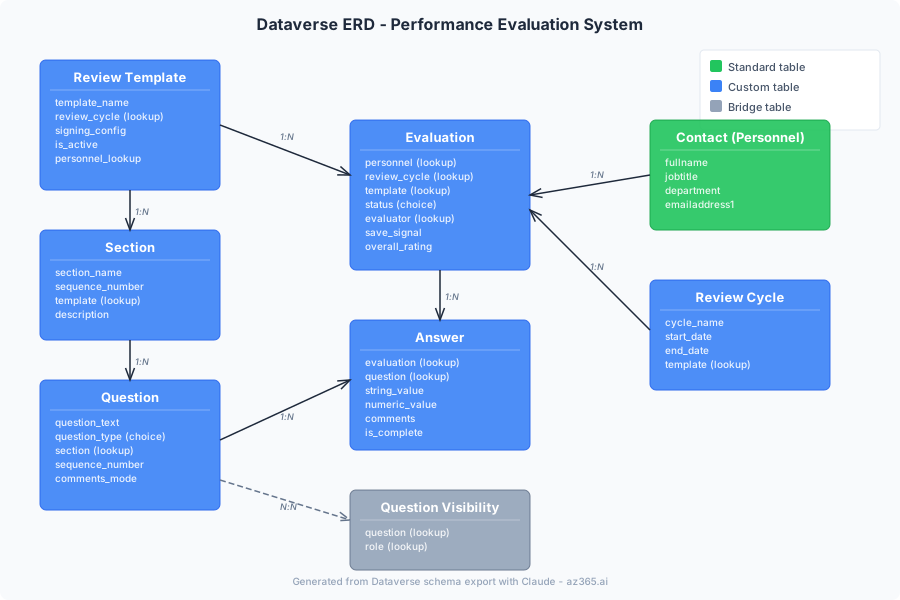
We fixed 3 relationship arrows (polymorphic lookups on the evaluation table) and adjusted the layout. Total time: 7 minutes.
That ERD now lives in /docs/erd.drawio in the project repo. When we add a new table, we re-export the schema, re-generate, and diff against the previous version. The ERD is always current. This is the core idea behind living documentation in git - your diagrams stay in sync with your code.
Keeping It Current
The real value isn’t generating the ERD once. It’s keeping it updated.
- Schema changes -> re-export from XrmToolBox
- Paste new export into Claude with the same prompt
- Claude generates updated XML
- Compare with the previous .drawio file in git (XML diffs show exactly what changed)
- Commit the update
This takes 5 minutes per schema change. Compare that to opening Visio, finding the right diagram, manually adding a table, drawing the relationships, and hoping you didn’t miss one.
Want to level up your Dataverse documentation workflow? Follow Alex on LinkedIn for more on AI-assisted architecture and schema visualization.
XrmToolBox Plugins for Schema Export
| Plugin | What It Exports | Best For |
|---|---|---|
| Metadata Document Generator | Full schema as Excel/CSV/Word | Comprehensive export with all column details |
| Entity Relation Diagram Creator | Visual diagram (limited) | Quick preview, but not as flexible as Claude |
| FetchXML Builder | Query results, not schema | Not for ERDs - but useful for data exploration |
| Solution Component Mover | Solution XML | Contains relationship metadata for Claude |
I use Metadata Document Generator for the export and Claude for the diagram. The plugin gives structured data that Claude parses cleanly.
What’s Next
Now you have an ERD. But is it consistent? Does your team use the same colors, shapes, and conventions? Next article: ERD standards for Dataverse that teams actually follow.
AZ365.ai - Azure and AI insights for architects building on Microsoft. Follow Alex on LinkedIn for architecture deep dives.
Stay in the loop
Get new posts delivered to your inbox. No spam, unsubscribe anytime.
Related articles
Spec-Driven Power Automate: Parallel Flow Generation From a Single Spec
How a precise markdown spec, tag-based architecture, and parallel AI agents turn a batch of notification flows into a clean Dataverse solution import. Pattern walkthrough.
Generate a Beautiful Dataverse ERD in 5 Minutes
Stop struggling with ugly, unreadable ERDs. Generate color-coded, publication-ready Dataverse entity relationship diagrams using batch XML generation.
Building Dataverse Solution ZIPs Programmatically: The Undocumented Guide
Build a Dataverse solution ZIP from scratch, covering the two JSON formats, the forward-slash trap, and undocumented XML workflow entries.