Power Automate Environment Strategy - Dev Test Prod Done Right
Stop running Power Automate flows in the default environment. Practical guide to dev/test/prod with Managed Environments and environment routing.

Open the Power Platform Admin Center. Click on Environments. If you see one environment where every Power Automate flow runs - the default - this article is for you.
The default environment is the single biggest governance liability in Power Platform. Every licensed user in your tenant gets the Environment Maker role in the default environment. Every user can create flows, apps, and connections there. Every user’s work sits next to every other user’s work. There are no guardrails, no separation, and no way to promote tested work to production because there’s only one environment. Everything is production.
This is how most organizations run Power Automate. And it works until it doesn’t. Until someone’s test flow sends 10,000 emails to real customers. Until a maker’s experimental flow consumes all the API capacity. Until you need to roll back a change and realize there’s nothing to roll back to because there’s no dev/test/prod separation.

The 3-Environment Minimum
At minimum, you need three environments for any workload that matters:
| Environment | Purpose | Who Has Access | Data |
|---|---|---|---|
| Development | Build and iterate on flows | Makers and developers | Sample/test data only |
| Test (UAT) | Validate before production | Makers, testers, business stakeholders | Production-like data (anonymized if needed) |
| Production | Live business processes | End users via apps, flows run automatically | Real business data |
This isn’t new. Software development has followed dev/test/prod for decades. Power Platform is software development. The fact that citizen developers build flows doesn’t change the fundamental need for environment separation.
Solutions move from Dev to Test to Prod through managed solution exports and imports. Connection references and environment variables handle the configuration differences between environments. This is Application Lifecycle Management (ALM), and it’s the only way to reliably deploy Power Automate flows at scale.
Developer Environments
Developer environments solve a specific problem: makers need a place to experiment without polluting shared environments. In the past, organizations either gave makers access to the default environment (too risky) or created shared dev environments (still messy).
Developer environments are personal sandboxes. Key facts from Microsoft’s current documentation:
- Each user can create up to 3 developer environments through the Power Platform admin center
- They include Dataverse at no additional storage cost to the tenant
- Capacity: 2 GB database, 750 flow runs per month
- They are meant for development and testing, not production use
- Auto-cleanup: disabled after 30 days of inactivity, then deleted 15 days later if not re-enabled
- The Developer Plan license is free and gives access to premium connectors for dev/test purposes
Default Environment Routing
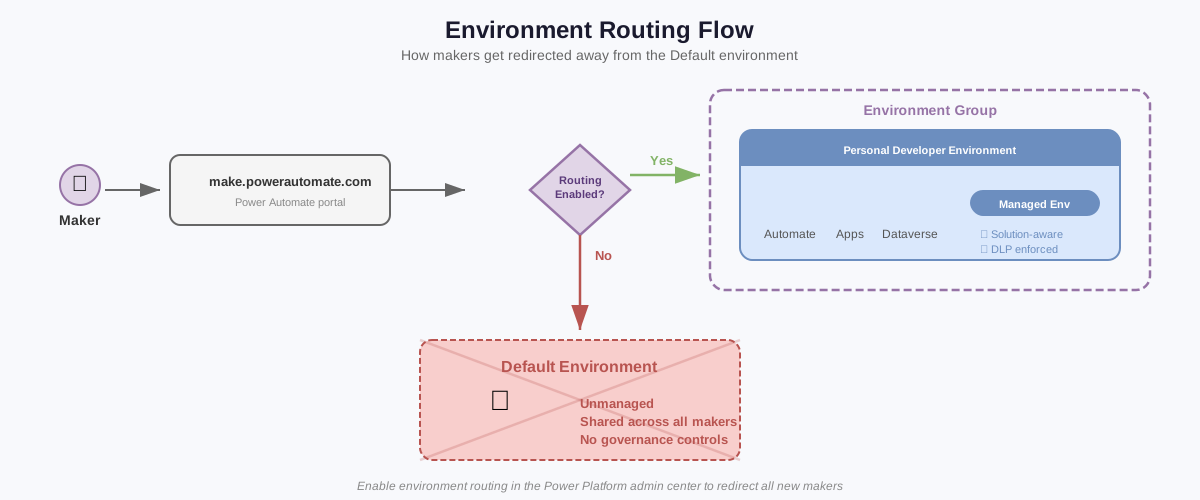
Here’s the governance feature that ties it together. Environment routing automatically redirects makers away from the default environment and into their own personal developer environments.
When enabled, a maker who navigates to make.powerapps.com or make.powerautomate.com lands in their own developer environment instead of the default. If they don’t have a developer environment yet, one’s created automatically.
- 1
Open Power Platform admin center
Navigate to admin.powerplatform.microsoft.com. You need Power Platform admin privileges.
- 2
Go to Manage > Tenant settings > Environment routing
Find the Environment routing setting under Tenant settings. It's off by default.
- 3
Select the product portals
Choose which portals trigger routing: Power Apps, Power Automate, Copilot Studio. Enable all three for full coverage.
- 4
Create a new routing rule
Select New rule. Give it a name. Choose whether to route Everyone or a specific security group.
- 5
Assign an environment group
Select the environment group that new developer environments will be automatically placed into. This ensures group-level governance rules apply immediately.
- 6
Save and test
Save the rule. Have a test user navigate to make.powerautomate.com. They should land in their developer environment, not the default.
The developer environments created by routing are Managed Environments by default. This means they inherit the preconfigured settings:
- Sharing limits: excludes sharing with security groups, limited to 5 individuals
- Solution Checker: set to Warn
- Usage insights: enabled
What Do Managed Environments Actually Add?
Managed Environments give admins sharing limits, solution checker enforcement, usage insights, maker welcome content, and environment-level data policies. They layer governance controls on top of any existing environment without changing how makers build. The tradeoff is that users who run resources in a Managed Environment need premium licensing.
Managed Environments are not a separate environment type. They’re a set of capabilities you enable on an existing environment.
What Managed Environments add:
| Capability | Without Managed Environments | With Managed Environments |
|---|---|---|
| Sharing limits | Anyone can share with anyone | Admins control sharing limits per environment |
| Solution Checker enforcement | Optional, maker's choice | Enforced at environment level (None, Warn, or Block) |
| Usage insights | Limited to admin center analytics | Richer usage data in the admin center |
| Maker welcome content | None | Custom welcome message with links to governance docs |
| Data policies | Tenant-level DLP only | Environment-level DLP enforcement |
| Backup and restore | Standard | Enhanced with longer retention |
Managed Environments require premium licensing for users who run resources. This is the tradeoff. You get governance controls, but you need to plan your licensing accordingly.
Environment Groups
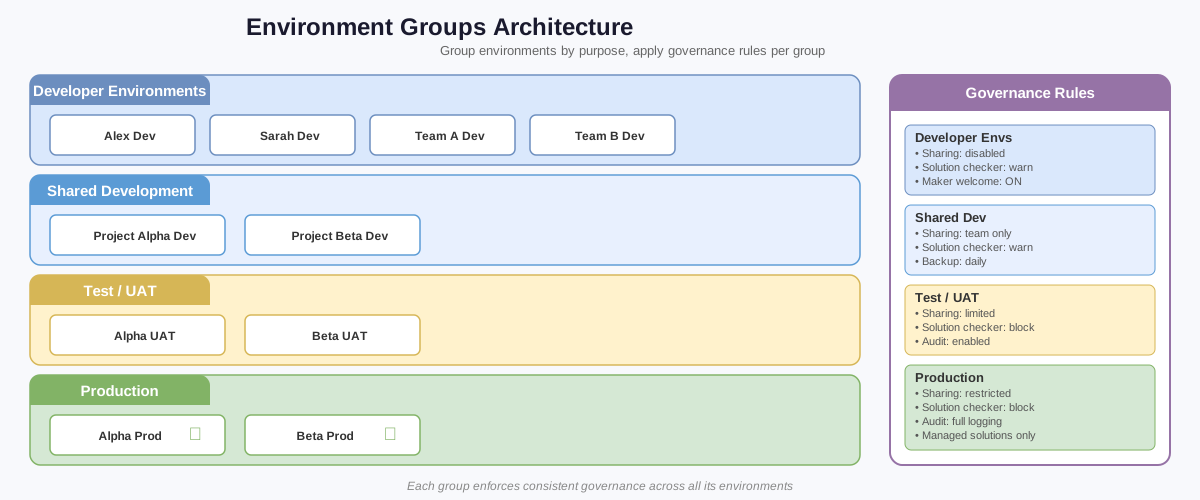
Environment groups let you organize environments and enforce rules at the group level. Instead of configuring sharing limits, solution checker, and other settings on each environment individually, you configure them once on the group and every environment in that group inherits the rules.
This matters when you have 10, 20, or 50 environments. Configuring each one manually doesn’t scale. Environment groups make it manageable.
The recommended pattern:
| Environment Group | Contains | Rules |
|---|---|---|
| Developer environments | All maker developer environments (auto-populated by routing) | Sharing limited to 5 users, solution checker warns, usage insights on |
| Shared development | Team dev environments for formal projects | Sharing limited to security groups, solution checker warns |
| Test / UAT | Test environments for each project | Sharing limited, solution checker blocks on errors |
| Production | Live environments | Strict sharing limits, solution checker blocks, full audit logging |
When environment routing creates a new developer environment, it can automatically place it in the Developer environments group. The maker gets a governed environment from day one without any admin intervention.
Connection References and Environment Variables

These are the bridge between environments. Without them, you can’t move flows from dev to test to prod.
Connection references abstract the authentication. In dev, the connection reference points to your dev SharePoint site. In test, it points to the test site. In prod, the production site. The flow itself is identical across all three environments. Only the connection reference value changes.
Environment variables store configuration that differs per environment. Email addresses, URLs, thresholds, feature flags. The flow references the variable, not the value. When you import the solution into a new environment, you set the variable values for that environment.
Example of the same flow across three environments:
| Component | Dev | Test | Prod |
|---|---|---|---|
| Flow name | HR-Evaluation-Notify-OnStatusChange | Same | Same |
| Connection ref: contoso_outlook_hr | [email protected] | [email protected] | [email protected] |
| Env var: contoso_HR_NotificationMailbox | [email protected] (dev testing) | [email protected] | [email protected] |
| Env var: contoso_HR_ApprovalThreshold | 0 (approve everything for testing) | 1000 | 5000 |
The flow logic never changes between environments. Only the configuration changes. This is what makes ALM possible.
The Full Picture
Putting it all together:
- Makers start in their own developer environment (created by environment routing)
- They build flows inside solutions using connection references and environment variables
- When ready, they export the solution and import it into a shared test environment
- Business stakeholders validate in test
- The solution is promoted to production as a managed solution
- Each environment is in an environment group with appropriate governance rules
- The default environment is locked down. No new flows are built there.
This isn’t aspirational. This is the environment strategy that Microsoft recommends and that the platform supports today. The tooling exists. The licensing model supports it. The only thing missing in most organizations is the decision to implement it.
Start with What You Have
If you’re running everything in the default environment today, here’s the pragmatic path forward:
- 1
Create a production environment
Provision a new environment with Dataverse. This becomes your target for business-critical flows.
- 2
Create a dev environment
Provision a development environment. This is where makers build new flows going forward.
- 3
Enable environment routing
Route new makers to developer environments. This prevents new flows from landing in the default.
- 4
Migrate critical flows
Move your most important flows into solutions in the dev environment. Deploy to production through managed solutions.
- 5
Enable Managed Environments on production
Turn on Managed Environments for your production environment. Configure sharing limits and solution checker enforcement.
- 6
Gradually migrate the rest
Work through the remaining flows in the default environment over weeks or months. Not everything needs to move at once.
The goal isn’t to migrate everything overnight. The goal is to stop making the problem worse (new flows in the default environment) while gradually fixing the existing state.
Power Automate Governance - The Enterprise Playbook
This article is part of a 10-part series:
- Naming Conventions That Scale
- Environment Strategy - Dev Test Prod
- Solution-Aware Flows
- Flow Inventory
- Pipelines - Dev to Prod
- CoE Starter Kit
- AI-Powered Flow Review
- Versioning and Source Control
- The Governance Repo
- Weekly Governance Digest
AZ365.ai - Azure and AI insights for architects building on Microsoft. Follow Alex on LinkedIn for architecture deep dives.
Stay in the loop
Get new posts delivered to your inbox. No spam, unsubscribe anytime.
Related articles
Spec-First Power Automate Development: Why Your Flow Specs Should Exist Before the Designer Opens
Designer-first Power Automate is opaque to source control and AI. Spec-first development makes flow generation reviewable, diff-able, and parallelizable.
Power Platform Pipelines - Moving Flows from Dev to Prod with Approvals
Pipelines in Power Platform are Microsoft's built-in CI/CD. Most orgs don't know they exist. Setup guide with approval gates and deployment settings.
Power Automate Versioning and Source Control - Export Tag Track
Power Automate has no version control for individual flows. Export flow JSON to git, tag versions, diff changes, and track every modification.